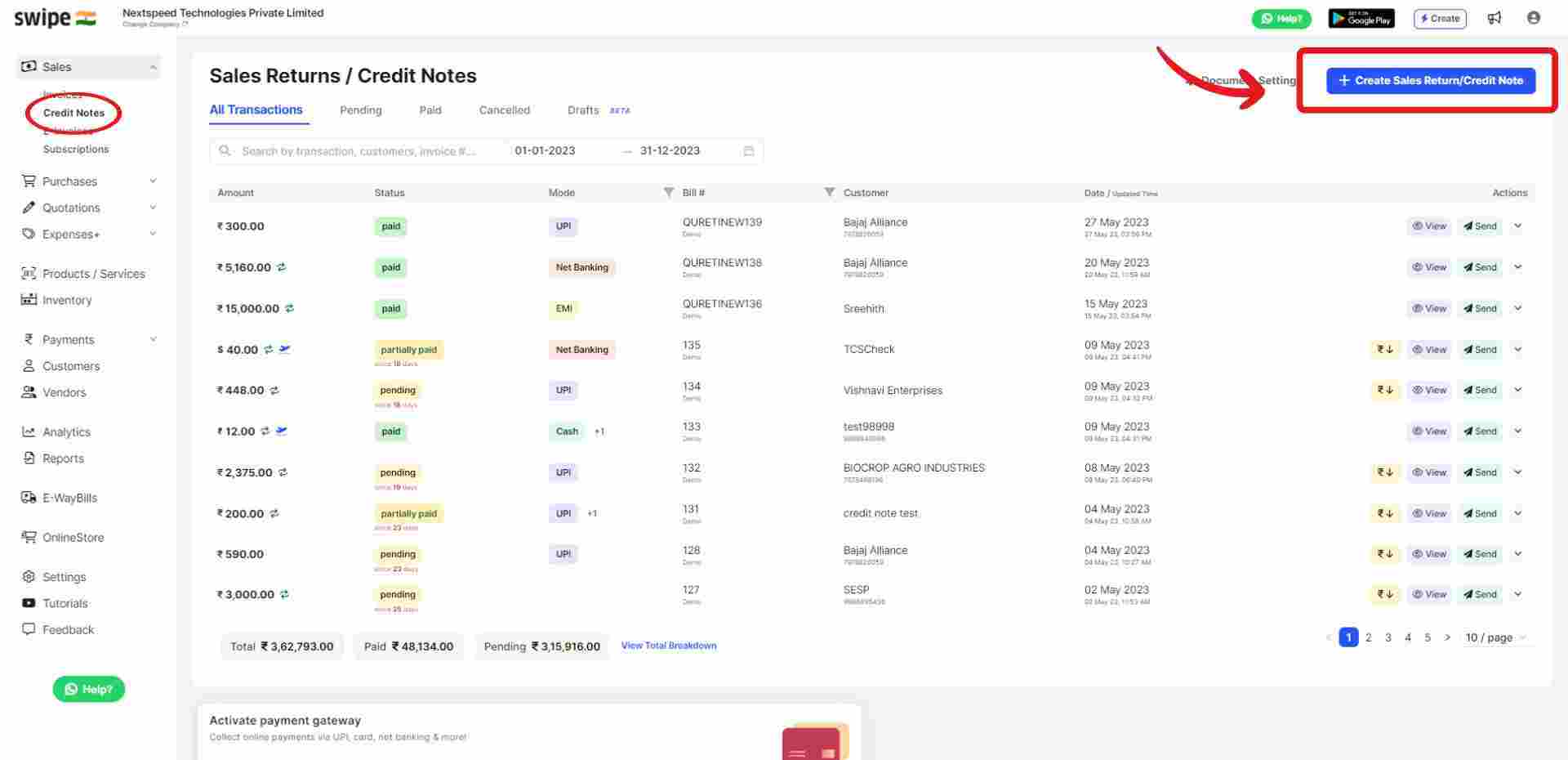
Step 1. Go to Sales and Select Credit notes from the drop down list. Then click on "Create Sales Return/Credit note” from the top right-hand corner of the screen.
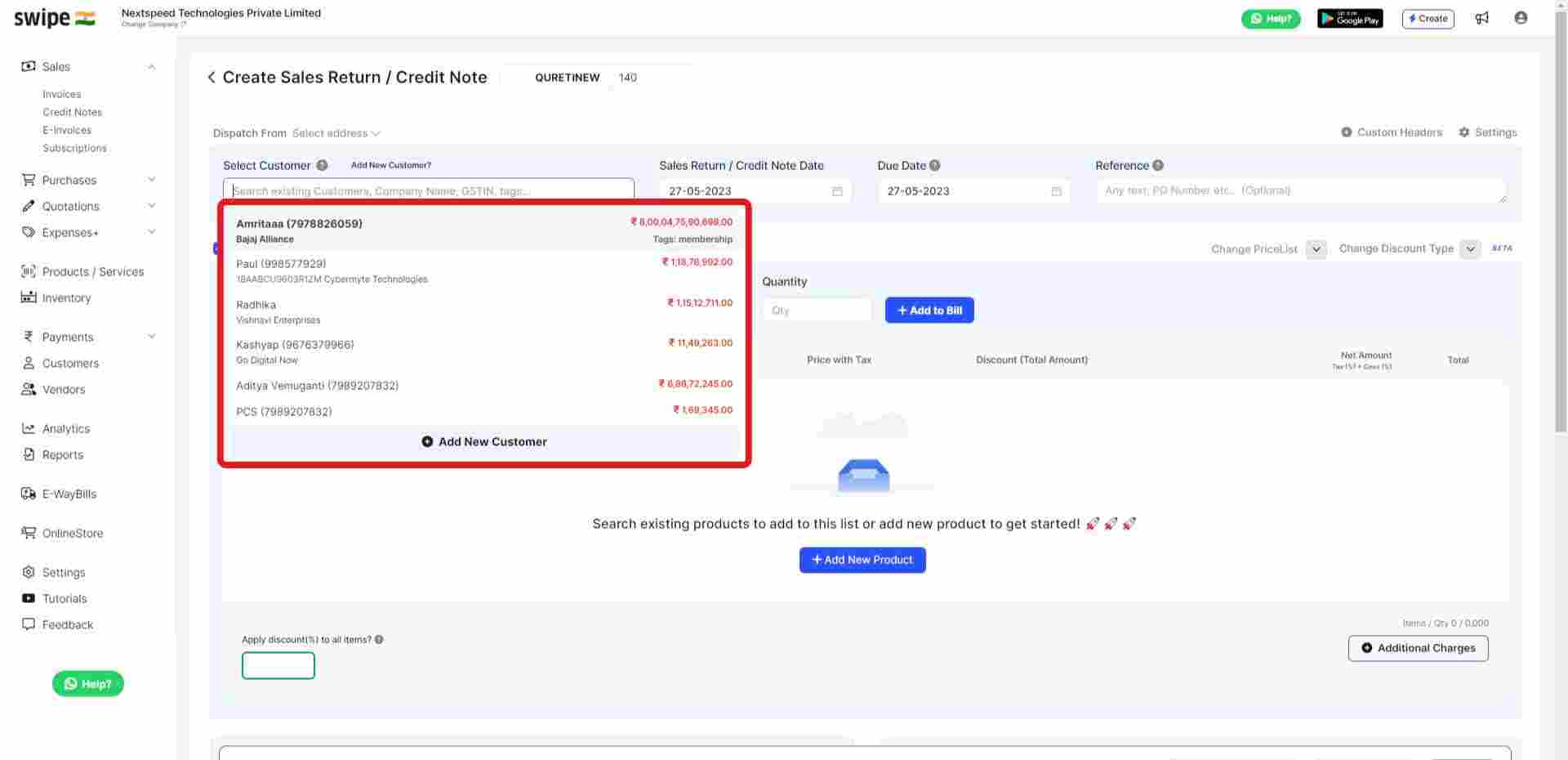
Step 2: Fill in the customer's details. You can select existing customers from the drop down list or add new customers by typing in their details manually.
(And fill in the necessary details like due date, reference number etc.)
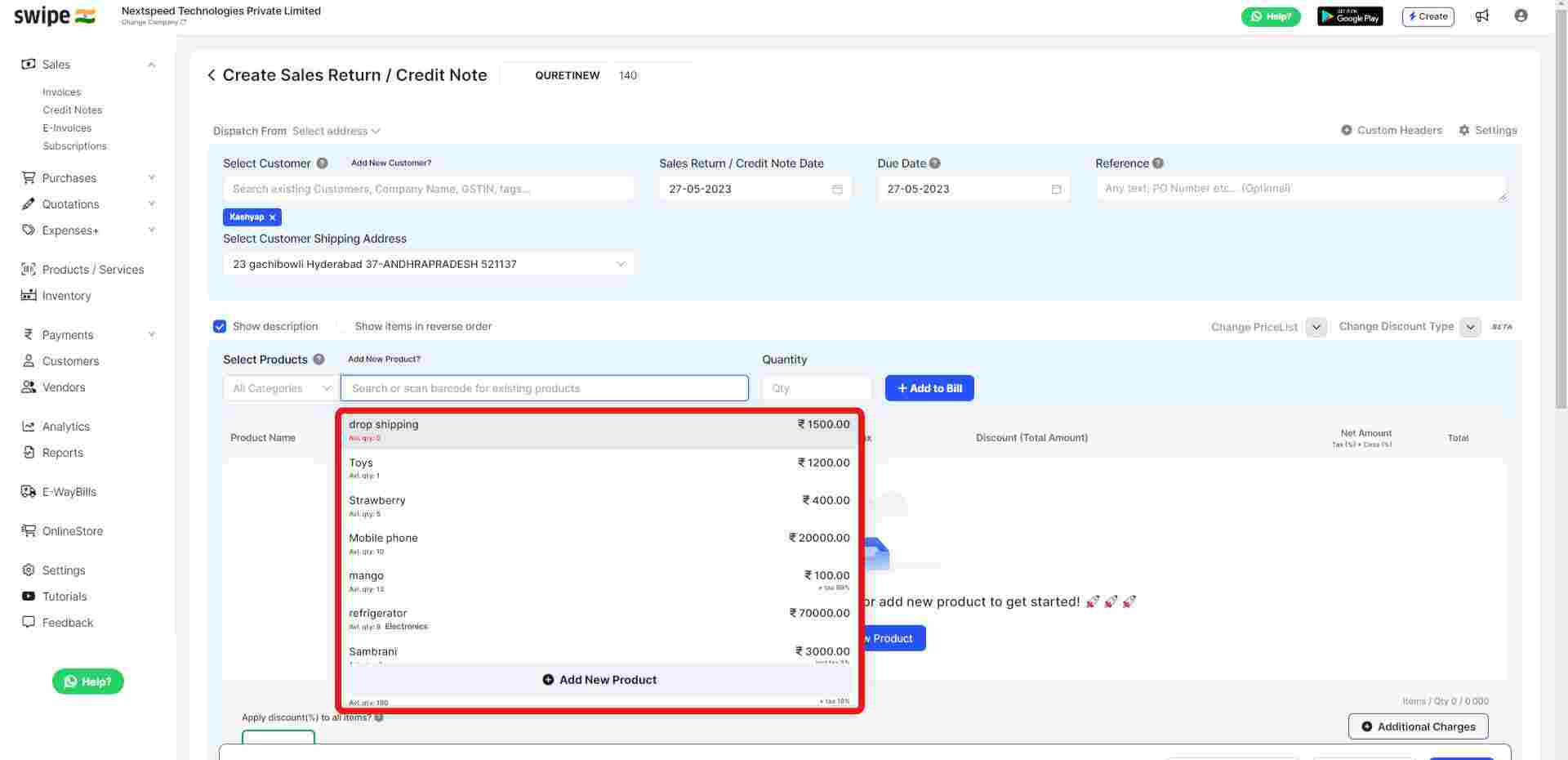
Step 3: Fill in the details of the products. You can select existing products from the drop down list or add new products by typing in their details manually.
To add more products, click on ‘+ Add New Product’, which will add new item rows.
Also, Click on ‘+ Add to bill’ and add the rest of the product details like quantity, category, discount, etc.
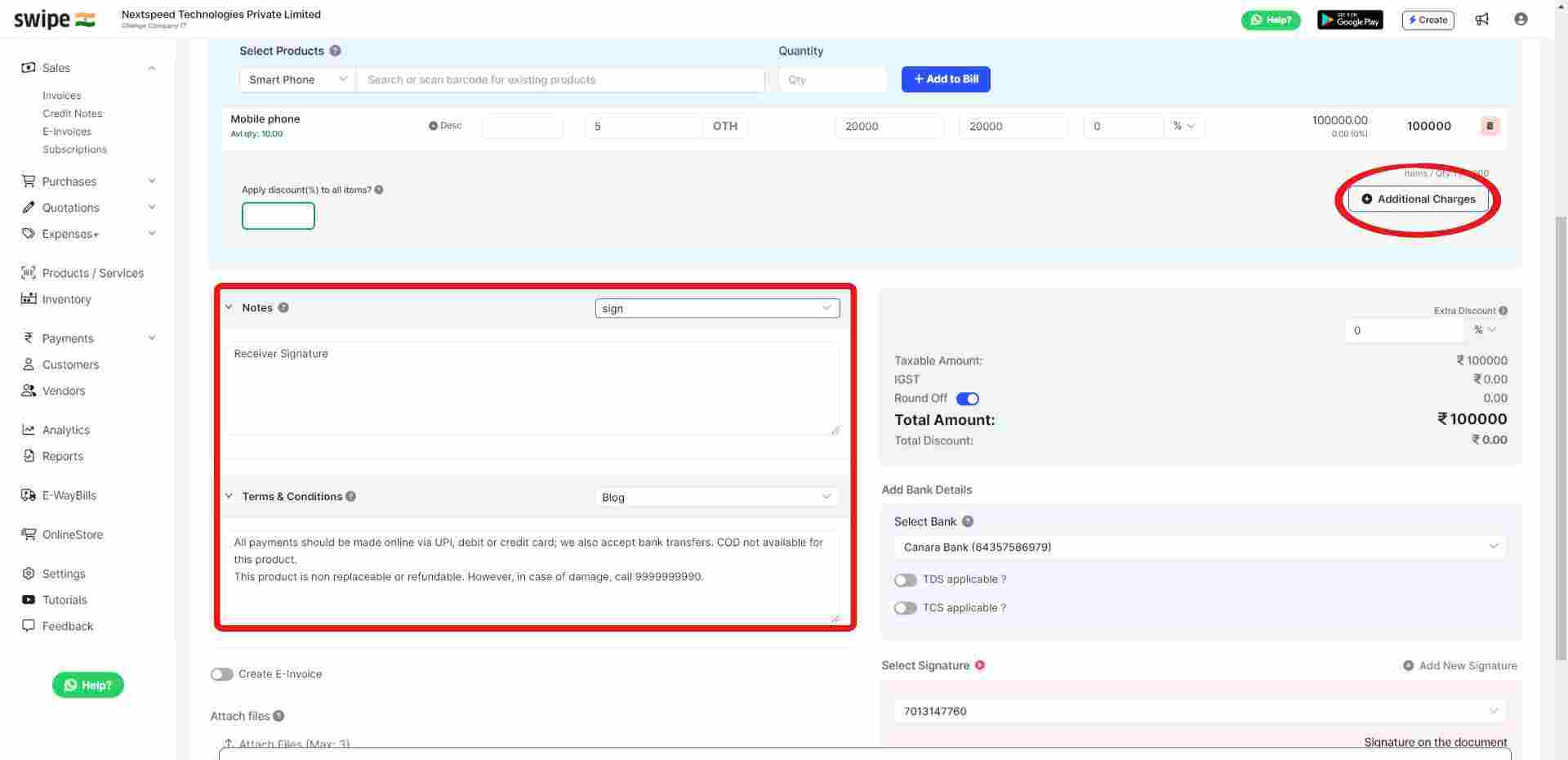
Step 4: Add additional charges (if applicable any) and create or edit notes as well as terms and conditions.
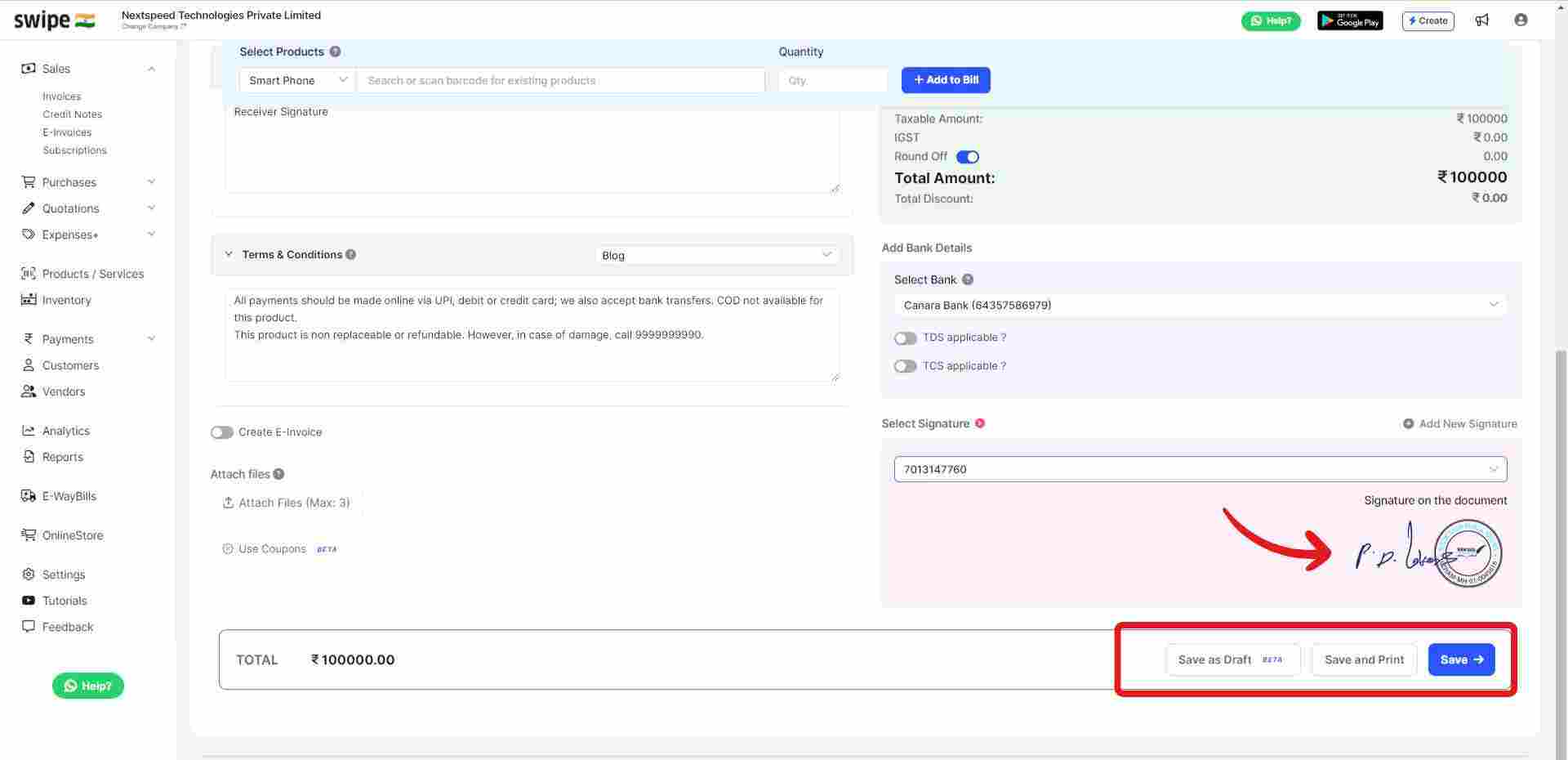
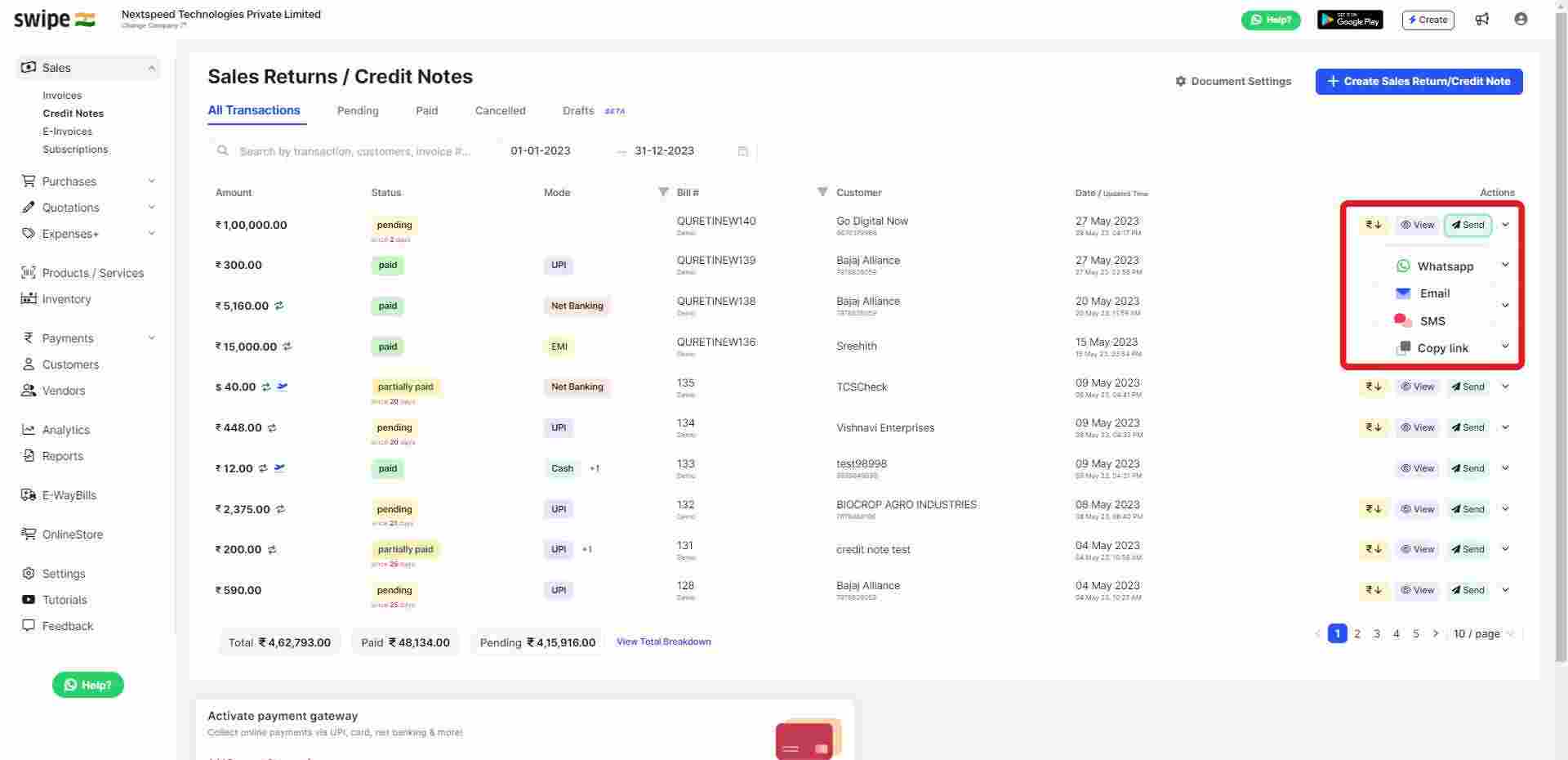
Step 5: Add your signature to the credit note and click on save. Your credit note/sales return will be ready and you can share it via WhatsApp, SMS or Email it to your customer.
How to create Sales Return/ Credit Notes on Mobile
Video Demo
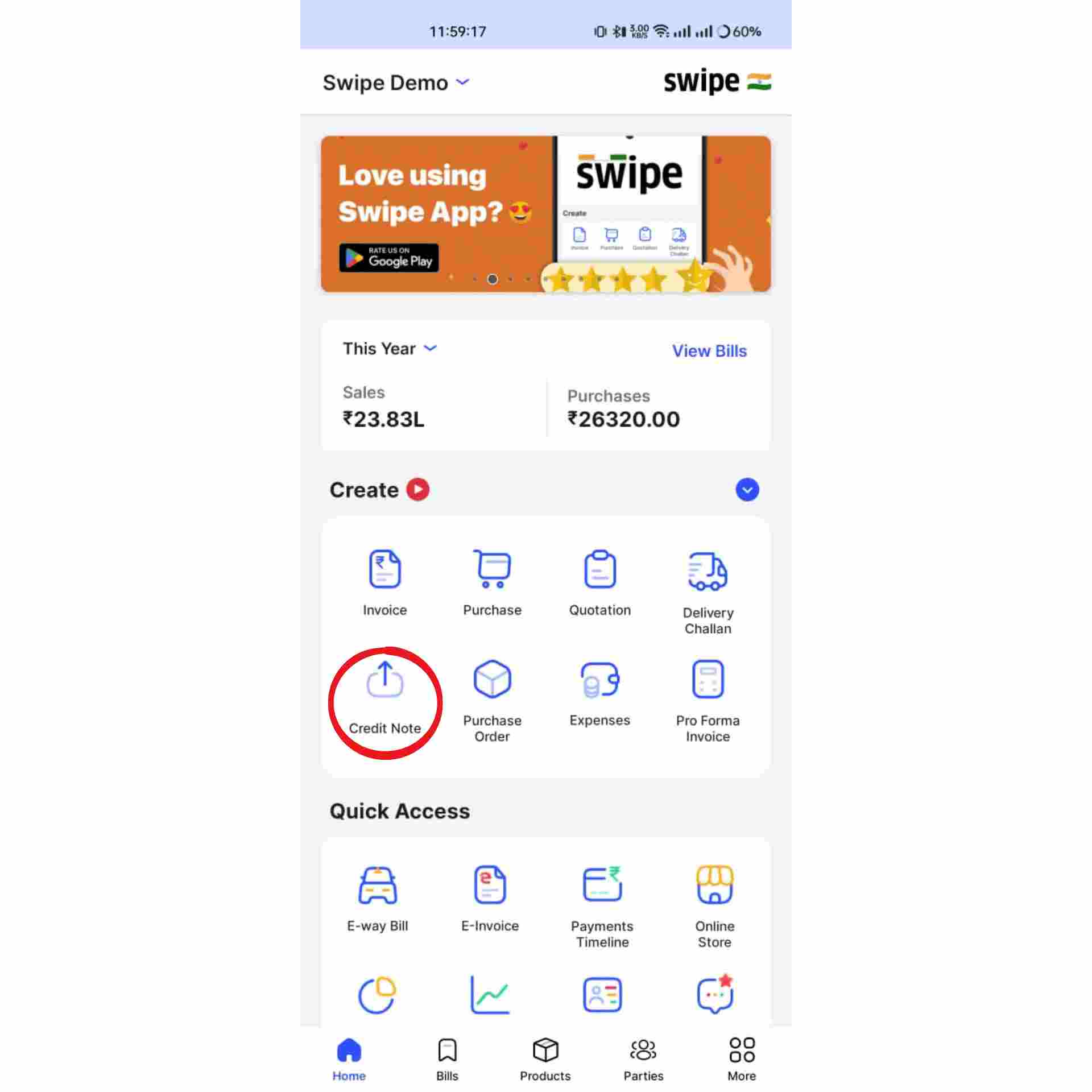
Step 1: Go to Create section and Click on Credit Note
Step 2: Fill in the customer’s details
Click on the “Select Customer” and select the customer you want to create the Sales return/credit note for or create a new customer profile by clicking on the “add customer” button.
Step 3: Fill in the product details.
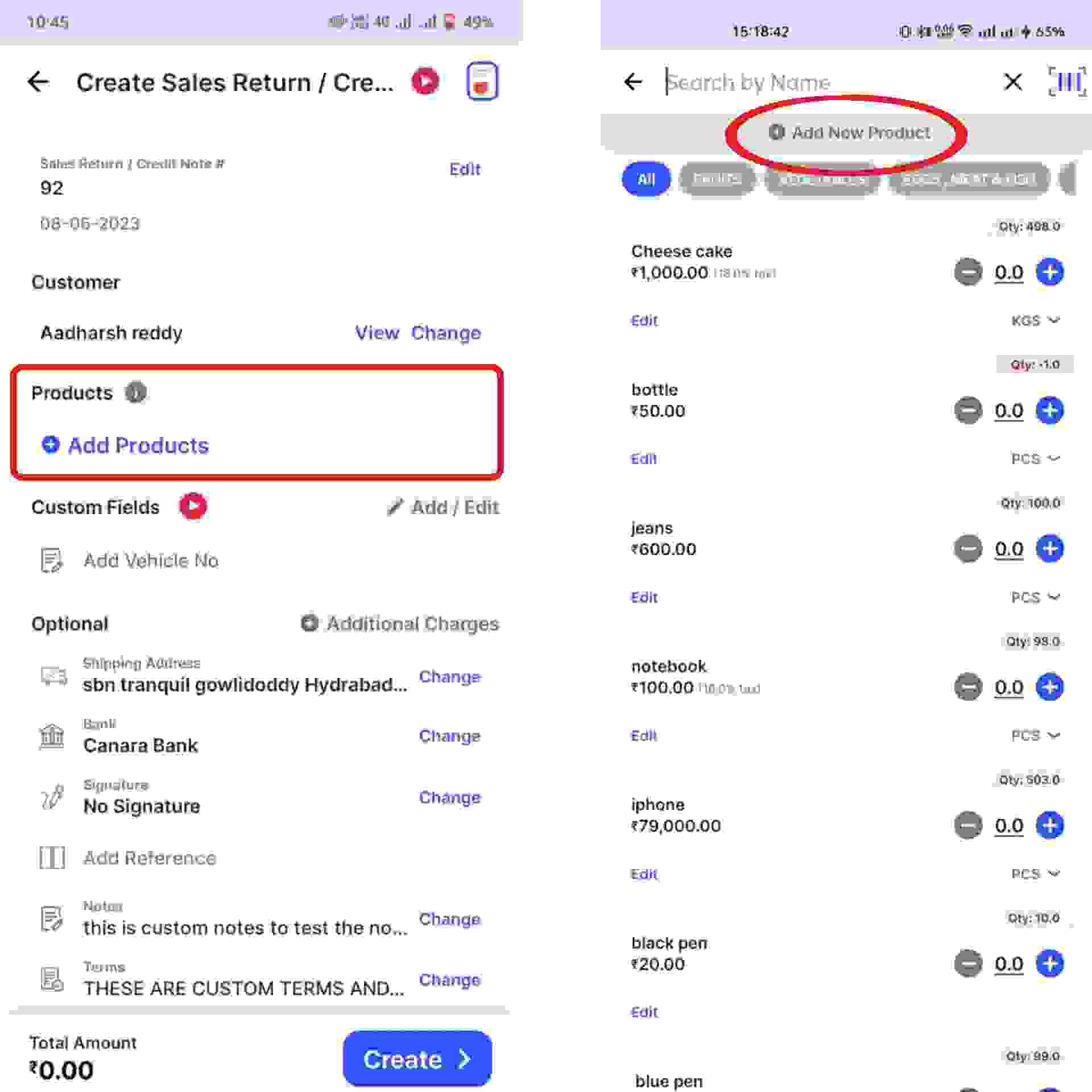
Click on the “Add Products” and select/ search for the product you would like to add. Now click on “+” to add the quantity of product.
or click on “+ Add New Product" at the top of the screen and type in their details manually.
Step 4: Fill in the other required details.
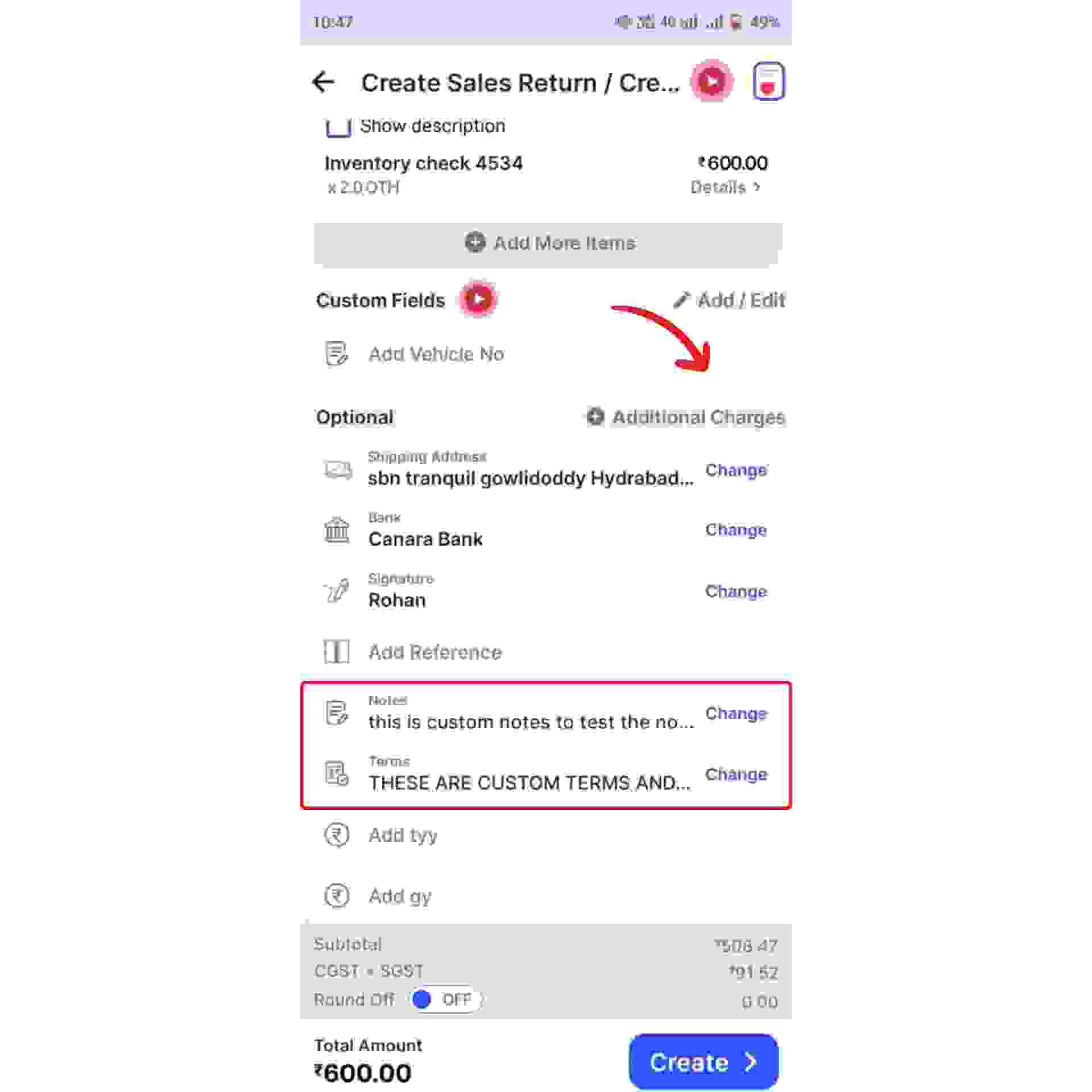
Add additional, delivery or packaging charges (if applicable any) and create or edit the notes as well as terms and conditions.
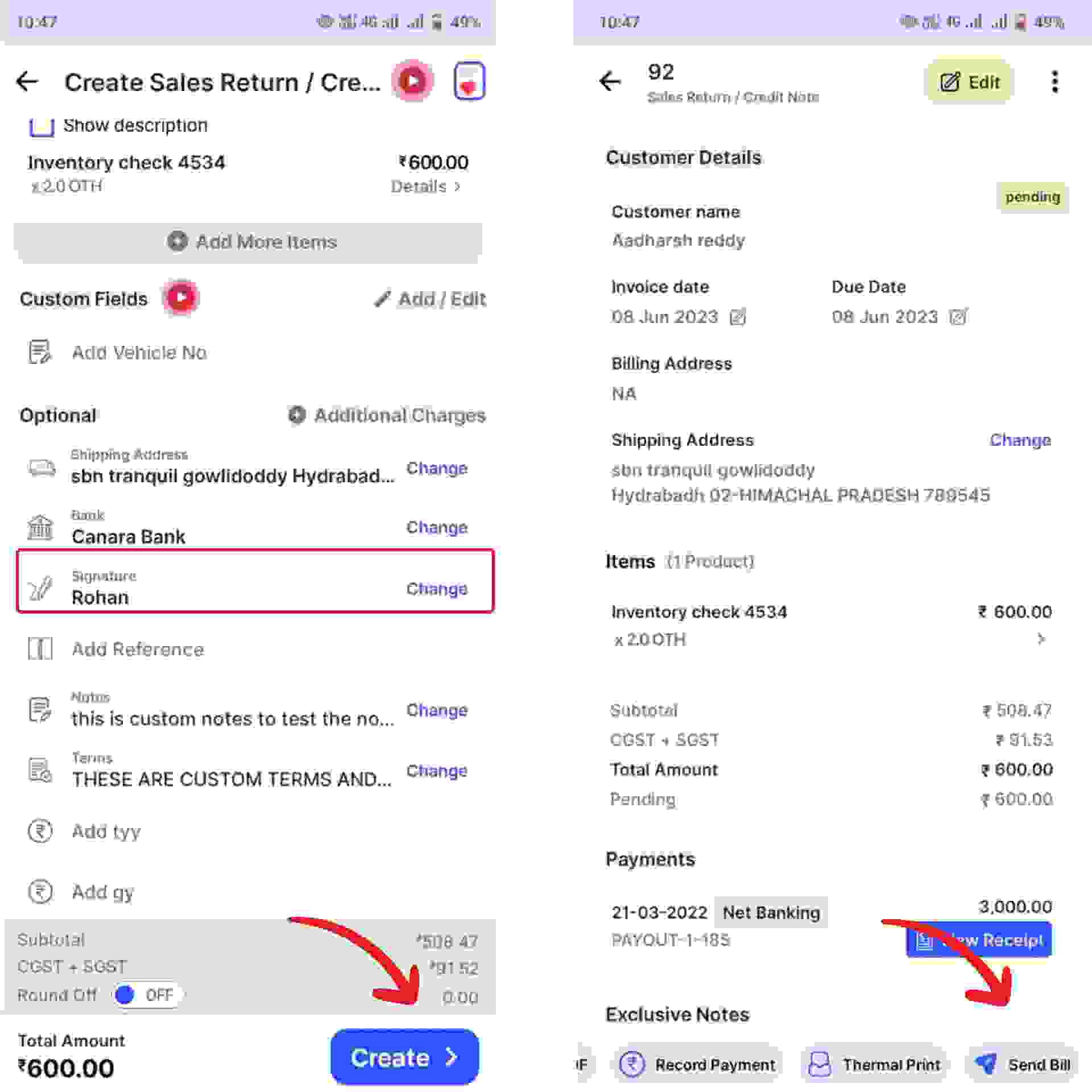
Step 5: Add your signature and click on “create”.
Your Sales Return/ Credit Notes is ready and you can share it via Whatsapp, SMS or Email to your customer by clicking on “Send Bill” at the bottom of the page.




%20(1).png)
%20(1).png)